


Reading a package page
The header buttons, the tabs (Versions, Changelog, Files, Security, Insights), versions not available yet, and the sidebar.
The header
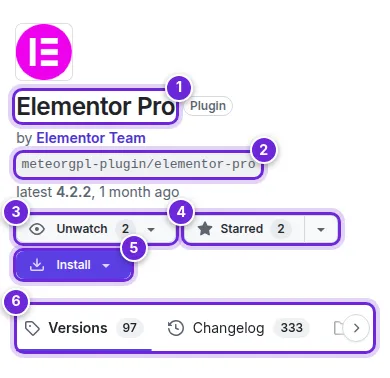
The top of every package page names the package (1) and its maker, and gives its Composer name (2) with the latest version. On the right:
- Watch (3): be told about new versions or security notices (Stars, lists and watching).
- Star (4): save it to one of your lists; the arrow next to it picks the lists (Stars, lists and watching).
- Install (5): the Composer commands and the ZIP download (Installing packages with Composer).
Under the header, the tabs (6) switch between the package's views.

Versions
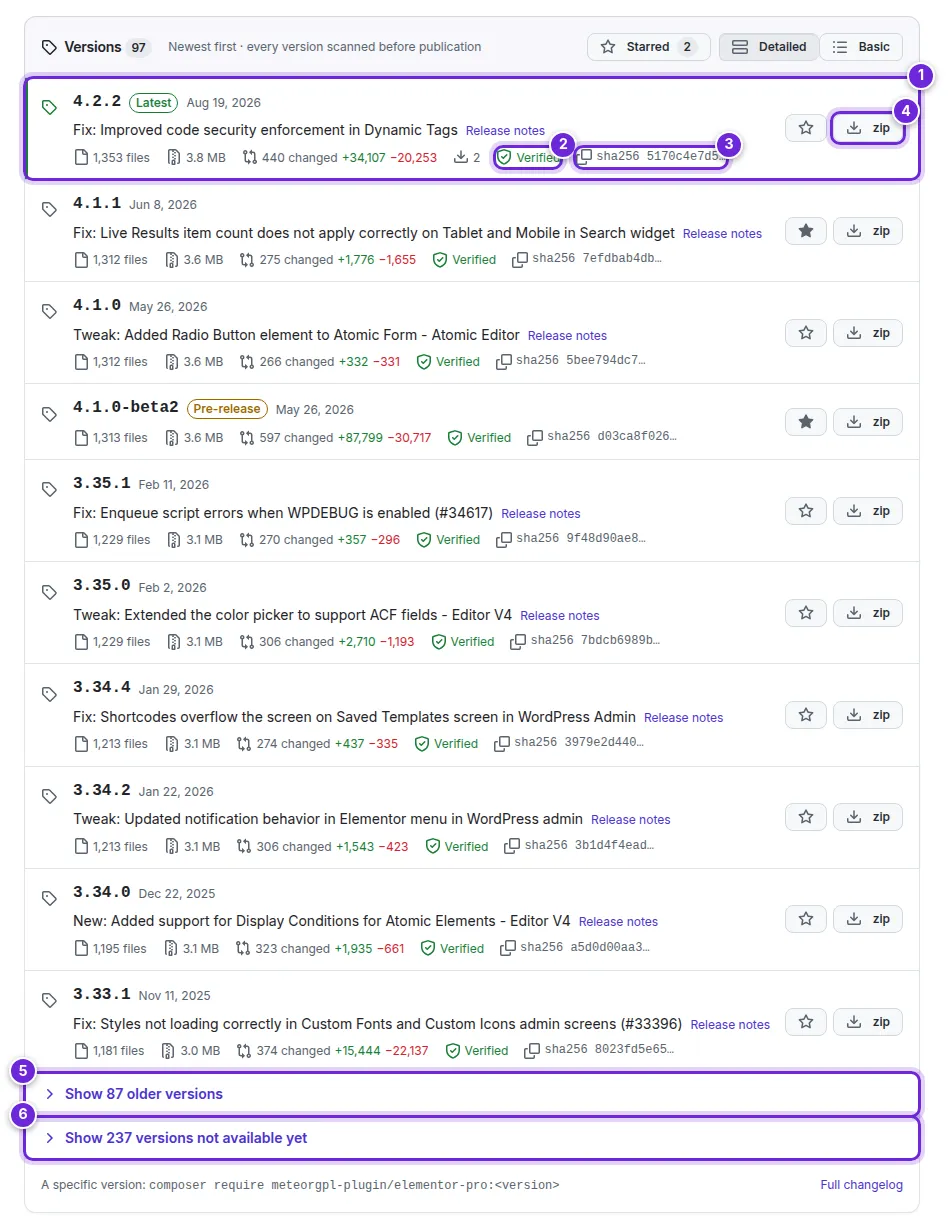
The first tab lists every published version, newest first, with the release note line from the vendor's changelog.
- The newest version carries Latest (1); pre-releases carry Pre-release, and a withdrawn version Withdrawn.
- Verified (2) means the version passed every check before it was published; it links to the Security tab.
- The SHA-256 of the ZIP (3) is copied with one click, to compare with what Composer downloaded.
- zip (4) downloads that version (with repository access).
- Show older versions (5) unfolds the rest of the list.
- Show versions not available yet (6) lists releases the vendor announced that the repository does not have yet.
Signed in, you can also star versions, show only the starred ones and switch between a detailed and a basic list (Starred versions).

Under the list, the readme describes the package, what it adds to WordPress (blocks, shortcodes, WP-CLI commands …), how to install it and its license.
Versions not available yet
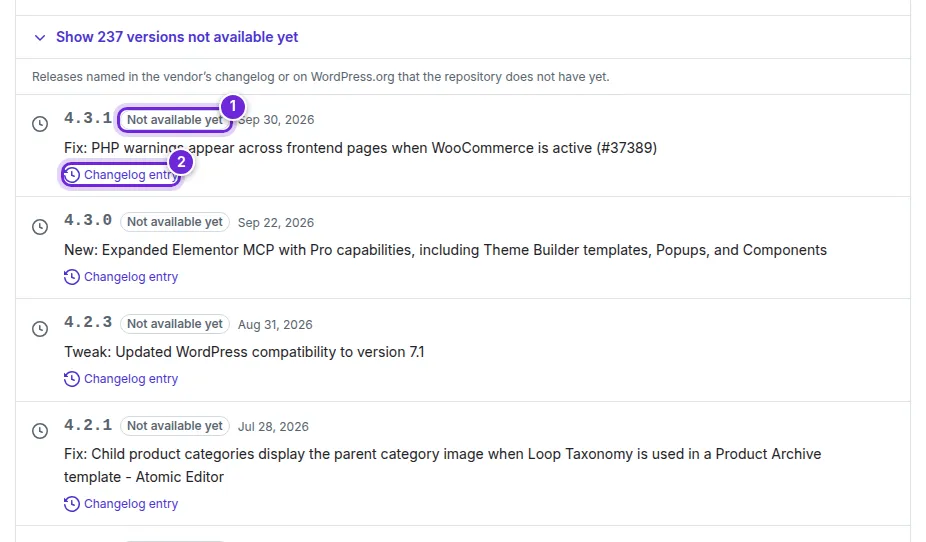
Releases named in the vendor's changelog or on WordPress.org but not in the repository show Not available yet (1), with their release date and a link to the Changelog entry (2) or WordPress.org. They become installable when the repository receives and checks them. Watch the package to be told.

Changelog
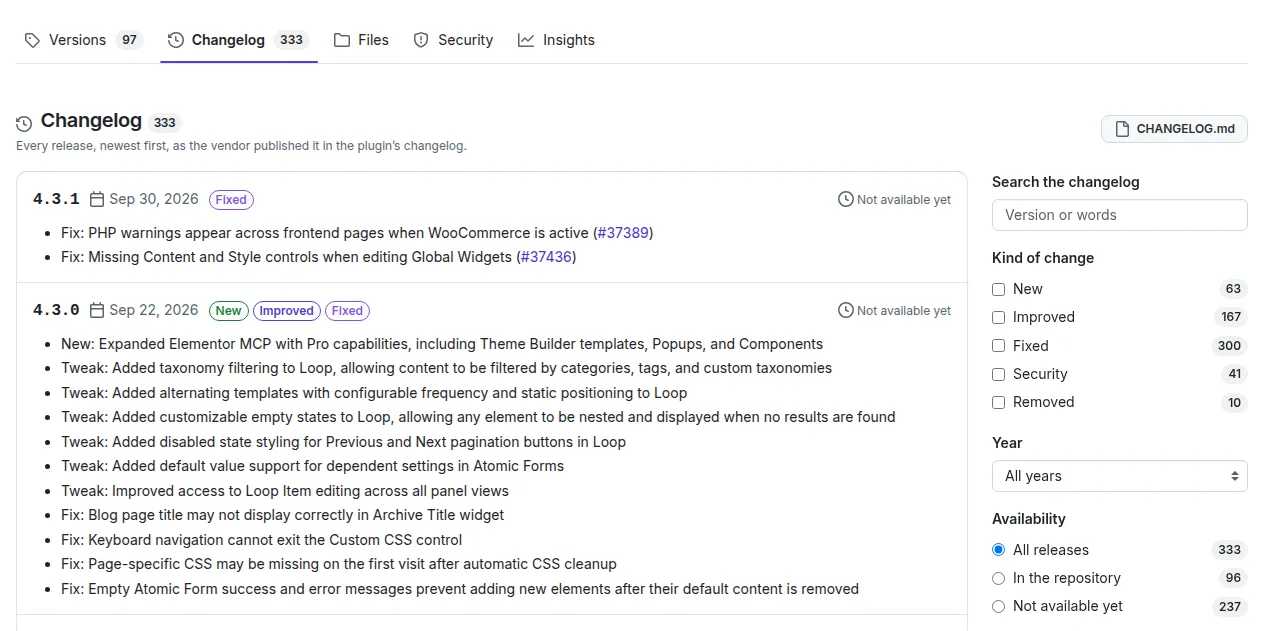
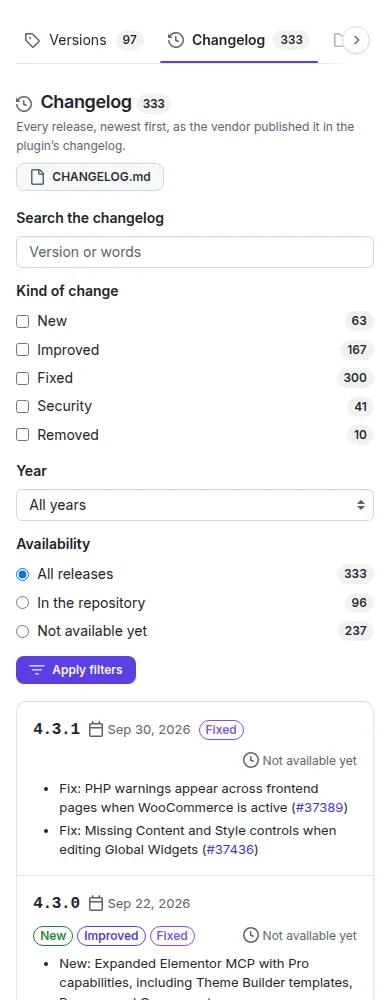
The Changelog tab shows the vendor's changelog per release. Search it, filter by kind of change (New, Improved, Fixed, Security, Removed), by year, or by availability (all releases, in the repository, not available yet). CHANGELOG.md gives the same as a Markdown file.
Files
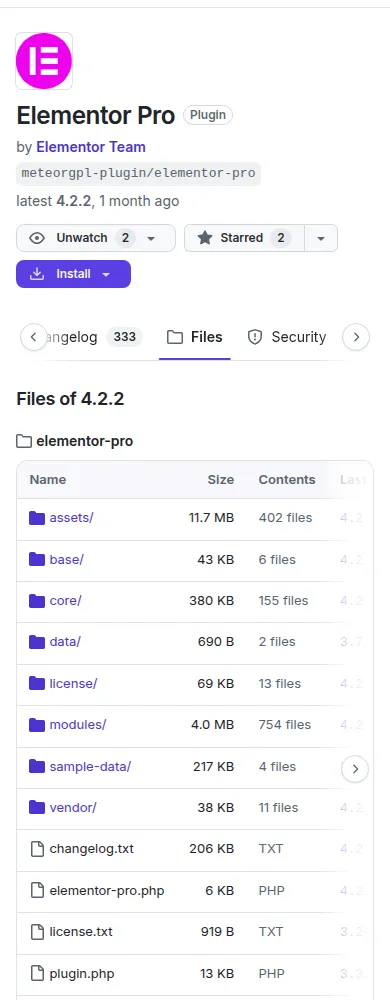
The Files tab (for signed-in accounts) shows the files of the latest version as a tree, with their sizes and the version in which each last changed, the languages the code is written in and the largest folders.

Security
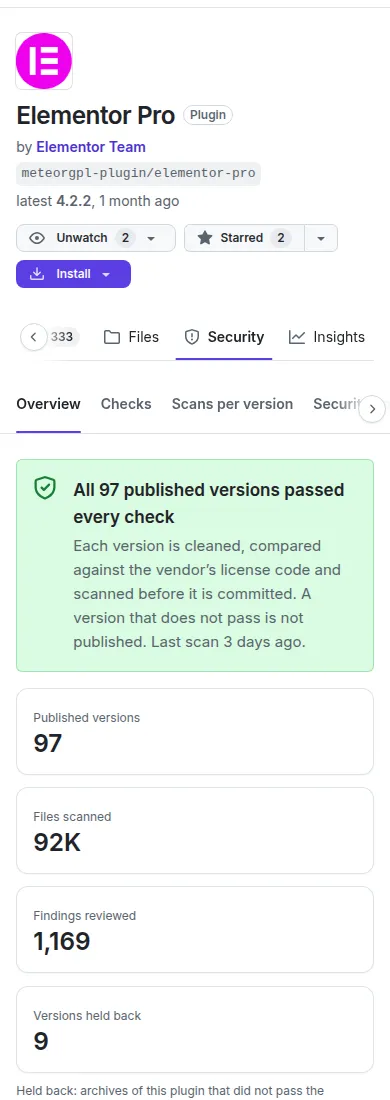
The Security tab shows how every version was checked before publication: the malware scan, pattern rules, PHP analysis, license integrity, PHP syntax and the asset policy, with the results per version, the security policy and known vulnerabilities (How packages are checked, and takedowns).

Insights
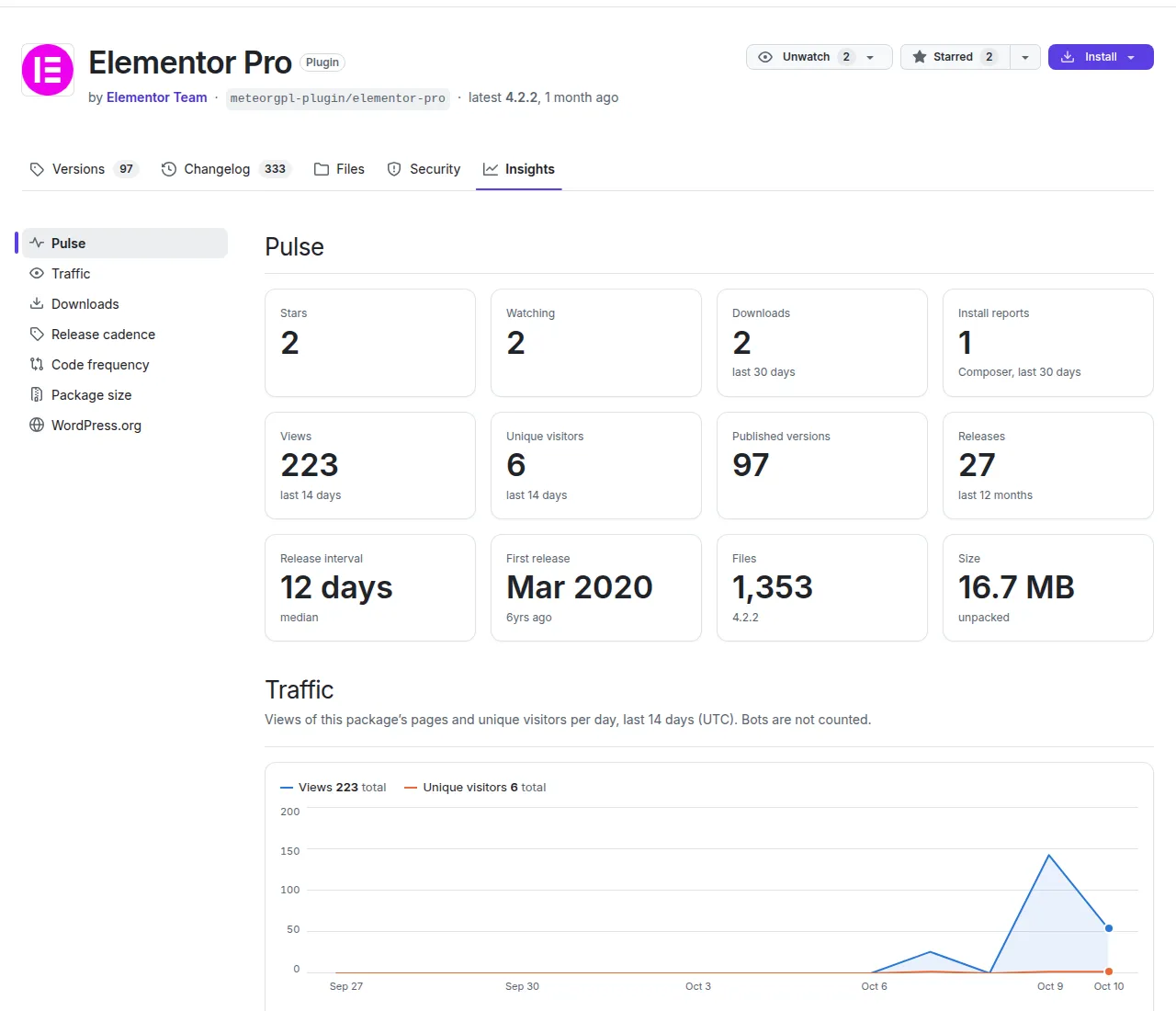
The Insights tab has the package's statistics: stars, watchers, downloads and install reports, page views, how often new versions come out, code changes per release, size over time and, for packages also on WordPress.org, their figures there.

The sidebar
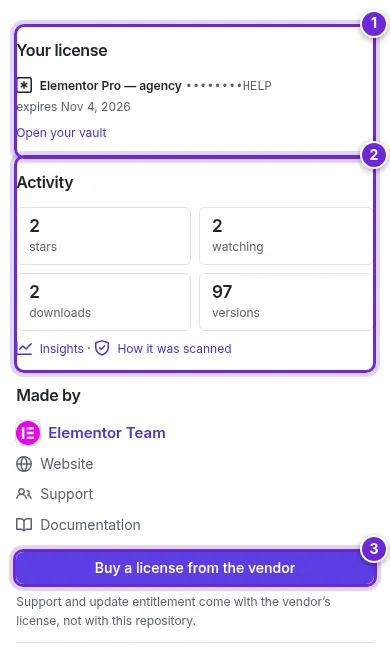
On the right of the Versions tab:
- Your license (1): the license key from your vault for this package, or a link to add it (Licences and the license key vault).
- Activity (2): stars, watchers, downloads and versions, with links to Insights and to how it was scanned.
- Buy a license from the vendor (3): support and updates inside WordPress come with the vendor's license.

Further down: requirements (PHP, WordPress, WooCommerce …), contributors, languages, figures from WordPress.org, the releases feed (Atom), the page as Markdown and Report this package.
Did this not answer your question? Contact support.