


Organisations: create one and invite your team
One plan for an agency or team, with a seat per member: create the organisation, invite people, choose their roles.
An organisation has one plan, priced per seat, shared Composer tokens for servers and CI, roles, an audit log and a data processing agreement.
Before you start
- Anyone with an account can create an organisation and becomes its owner.
- The people you invite need an account with the address you invite; they can create one from the invitation.
Create the organisation
- In Settings, under Organisations, select New organisation.
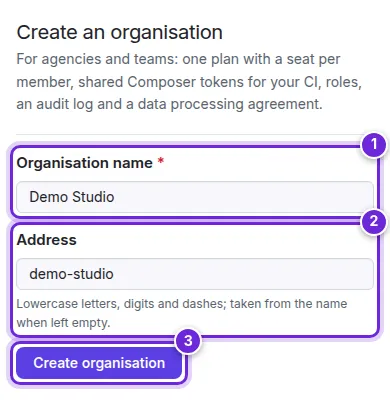
- Enter the Organisation name (1).
- The Address (2) is used in links (
/orgs/<address>); it is taken from the name when you leave it empty. - Select Create organisation (3).

Then choose a plan under the organisation's Billing and plans (Organisation tokens, billing, audit log and DPA).
Invite people
- Open the organisation's Members. The top says how many seats are in use (1).
- Under Invite someone (3), enter the E-mail address, choose the Role and select Send invitation.
- Pending invitations (4) lists invitations not yet accepted; Cancel withdraws one. An invitation expires after seven days.
- Change a member's role with the role menu next to them and Save (2), or Remove them.


Roles
| Role | Can |
|---|---|
| Owner | Everything, including billing, deleting the organisation and transferring it. |
| Admin | Members, invitations, tokens and settings; no billing. |
| Member | Installs every package with their own or the organisation's tokens. |
| Billing manager | Plan, payment details and invoices only; no repository access, no seat. |
Owners, admins and members take a seat; billing managers do not. Adding or removing members changes the number of seats, and Stripe prorates the difference.
Accept an invitation
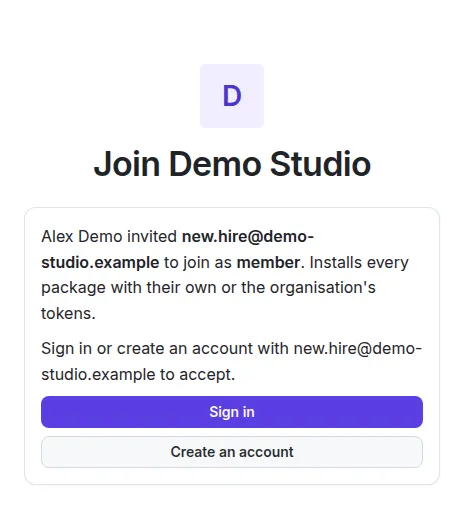
The person you invite gets an e-mail with a link. The page it opens says who invited them and with which role. Signed in with the invited address, they select Accept and join (or Decline); otherwise they sign in or create an account with that address first.
Members then install every package with their own Composer tokens or the organisation's, as long as the organisation has a plan.
Settings, transfer and deletion
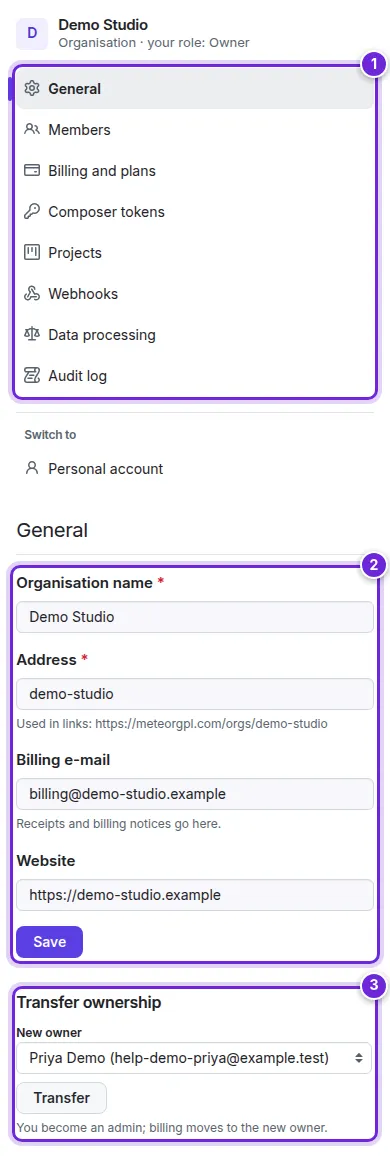
The organisation's General page (1) holds its name, address, billing e-mail (receipts go there) and website (2).
- Transfer ownership (3): choose an existing member; you become an admin and billing moves to the new owner.
- Delete organisation: ends the subscription at once, revokes the organisation's tokens and removes every member. Type the address to confirm.
- Members who are not the owner see Leave organisation instead.

Did this not answer your question? Contact support.